Reference Manual for the ARM® Compiler
Tool Chain v4.73 for μVision
Introducing
the ARM Compiler toolchain
Using the Linker
Using ARM® C and C++
Libraries and Floating-Point Support
ARM® C and C++
Libraries and Floating-Point Support Reference
Linker Reference
Using the fromelf Image Converter
Creating Static
Software Libraries with armar
Errors and Warnings
Reference
Migration and
Compatibility
Assembler Reference
Compiler Reference
Using the Assembler
Using the Compiler
RealView®
Real-Time Library
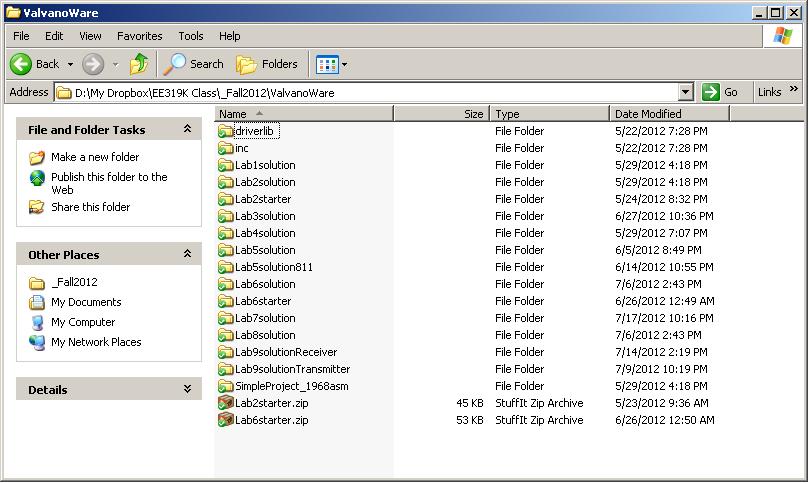
The correct way to build the directory for uVision projects is
ValvanoWare
(you can choose any name for this directory)
driverlib
inc
SimpleProject_1968asm (downloaded
project from Valvano)
YourLabProject
(solutions to your labs)
To build a directory for the LM4F120 or TM4C123
LaunchPadware
driverlib (with driverlib-cm4f.lib in it)
inc
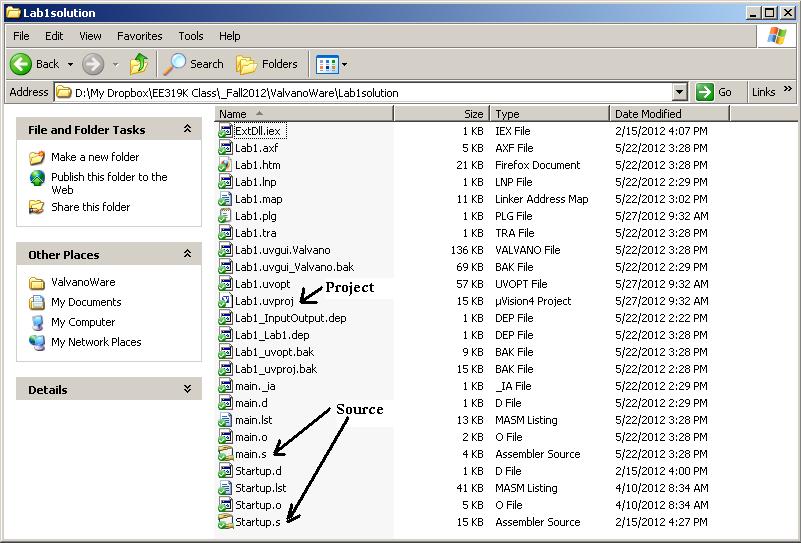
This is an example assembly project with two source code files
How to install Keil
uVision for the Arm, MDK-Lite (32KB)
Edition. It does not require a serial number or license key. If you are developing code for a Texas Instruments
microcontroller, I suggest you do NOT upgrade to Keil version 5. Rather I
suggest you stay with version 4.73:
1) Go to
https://www.keil.com/demo/eval/armv4.htm
Enter your contact information with valid address, phone and
email (use your official UT email address),
Company = University of Texas at Austin,
devices=TI,
architecture=Cortex-M4
Click submit
2) Right-click on MDK473_A.EXE (571,320K) and save it to your computer
3) Install
Texas Instruments Stellarisware
has lots of example files (it is free)
1) Go to http://www.ti.com/tool/sw-lm3s
2) Click get software
3) Create an account at Texas Instruments (use your official UT email address)
4) Certify you are not going to export the software to other countries
5) company web site is www.utexas.edu
6) end application: I put other=”education” use “Educational lab experiments”
7) Download and install.
Install Drivers for the LM3S/LM4F
board on Windows XP or Windows 7
machine
http://users.ece.utexas.edu/~valvano/arm/InstallDrivers.html
Install Drivers
for the LM3S/LM4F
board on a Windows 8 machine
http://users.ece.utexas.edu/~valvano/Win8drivers.htm
Send comments to: Jonathan W. Valvano
Embedded Systems:
Example files for the ARM
Cortex-M
Volume 1,
Introduction to ARM Cortex-M3 Microcontrollers (second edition),
ISBN: 978-1477508992
Textbook for EE319K, Available from Amazon
Available
from CreateSpace, Lecture and Lab Material, List of first
edition errors
Assembly language and introduction to interfacing for the Stellaris LM3S811 LM3S1968 and LM3S8962
Volume 2, Real-Time Interfacing to the ARM Cortex-M3, 2011, ISBN: 978-1463590154,
Textbook for EE445L, Available from Amazon Available from CreateSpace Lectures Lab manual List of errors
Interfacing and system design for the Stellaris LM3S811 LM3S1968 and LM3S8962
Volume 3, Real-Time Operating Systems for the ARM Cortex-M3, 2012, ISBN: 978-1466468863,
Textbook for EE345M/EE380L.6, Available on Amazon Available on CreateSpace List of errors
Operating systems, signal processing and network design for the Stellaris LM3S811 LM3S1968 and LM3S8962
ARM uVision Page http://www.keil.com/arm/realview.asp
Starter files http://users.ece.utexas.edu/~valvano/arm/